100% Security Verified | No Subscription Required | No Malware

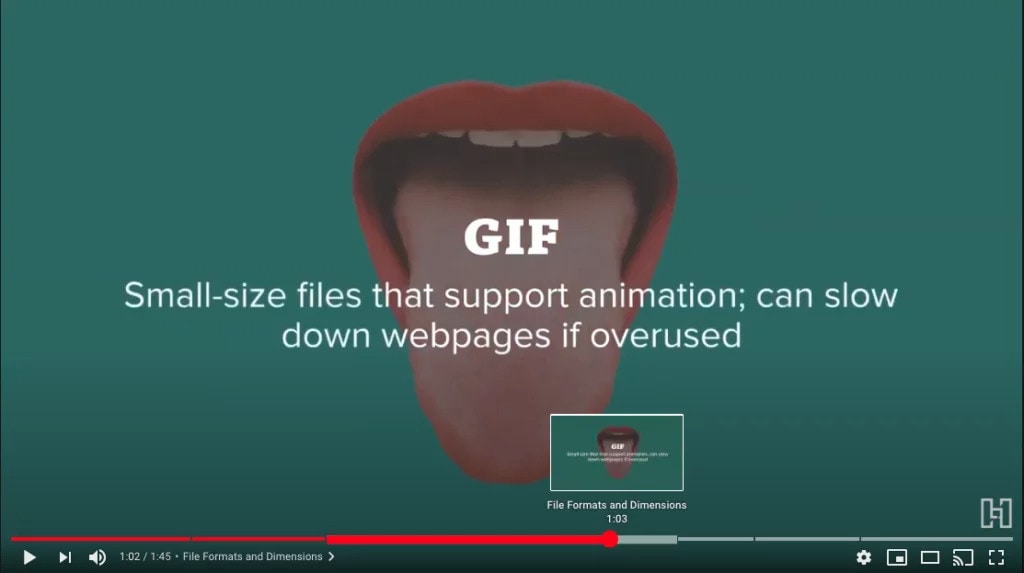
There are more than 2 billion users on YouTube monthly, and the numbers keep increasing. The app is available in 80 languages to accommodate the diverse communities available. Businesses, marketers, and several more categories of people are moving towards sharing their content using YouTube. With more competition on YouTube, you need new innovative ways to improve engagement for your content, and YouTube video chapters help you achieve that.
Creating quality video content is excellent, but you have to be aware of the various method you can increase the value of your video while optimizing them. One of the most effective ways is by adding chapters to your video. This method doesn't just upgrade your videos; it also makes them more user-friendly for customers and helps you get discovered even quicker.
What are YouTube Video Chapters?
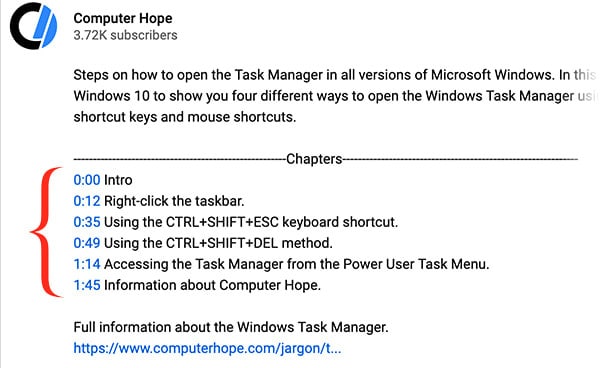
Video chapters are one of the ways you can organize your YouTube videos into accessible subtopics. Chapters require a timestamp; it helps you create a section that allows viewers to preview the content of the video and access the part they're looking for within the video without starting at the beginning of the progress bar. In addition, YouTube chapters provide viewers with more information and content. They are generated based on the timestamps you enter into the video description, and they will appear in progress far. Finally, adding chapters to a YouTube video creates an organized feel about your videos; they have so many benefits that we'll be diving into in the next section.
Benefits of YouTube Video Chapters
You get to enjoy many benefits when you start adding chapters to YouTube videos. This section explains three benefits of YouTube video chapters to better understand how they can help your YouTube channel and your brand.
Improved User Experience
Like Google's algorithm, YouTube always finds new ways to help viewers find precisely the information they're looking for on the app in just a few steps. With YouTube video chapters, you help to improve that user experience. When you give people the ability to jump to specific sections of your YouTube channel, it helps to enhance their experience in the app. Instead of letting viewers search through hours and minutes of YouTube videos, YouTube video chapters allow them to find the exact step or information they're looking for.
Users no longer have to watch an entire video or blindly navigate the video using the progress bar to find valuable information they're looking for. Instead, YouTube video chapters allow you to jump to the point you're looking for to get the information you need.
More Subscribers and Increased Video Watch
Do you know that long videos have very low watch time performance? The problem is that people don't have a way of evaluating if the video in question is worth their time, especially when they're simply looking for a piece of information. Due to this, they'll simply watch the first few minutes or seconds of your video before moving on to someone else's videos.
With a video chapter that works with timestamps, subscribers and non-subscribers can simply jump to the good part. Finding the information they want shows them that your video is highly relevant, making them watch longer and helping you convert visitors to non-subscribers.
Increased Visibility
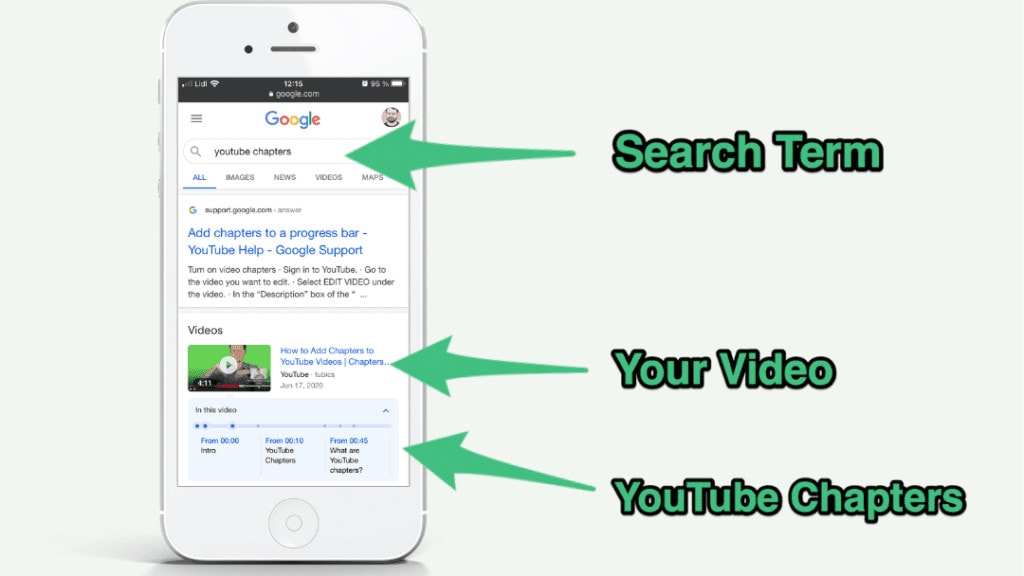
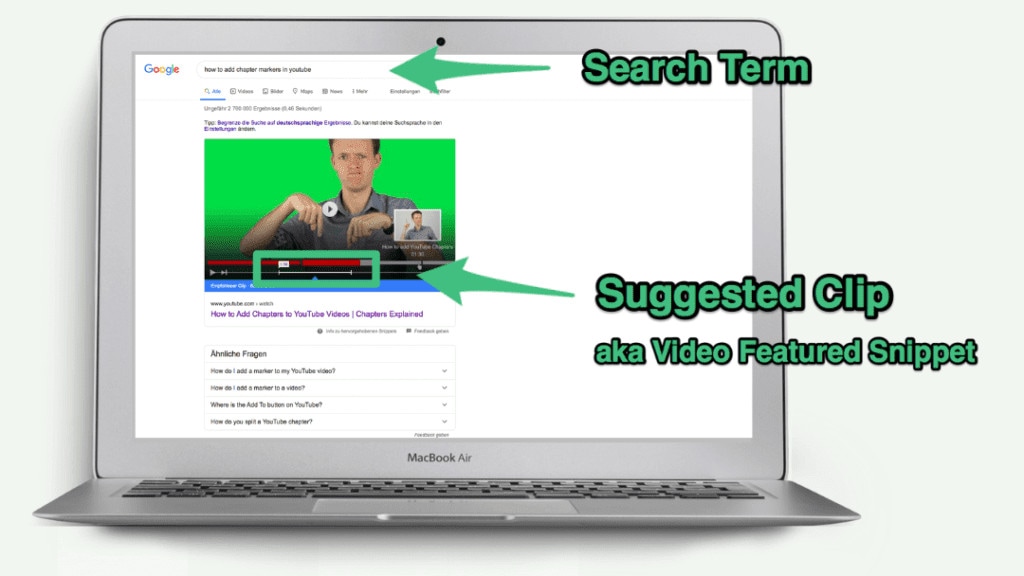
YouTube video chapters help to make your videos feature in search results. More importantly, it's likely that it affects the videos Google displays on its results, especially as the featured snippet. A YouTube video with chapters is more likely to appear in the top search result position. The reason is that YouTube chapters that include keywords help Google and YouTube offer better and more direct results to searchers. It is like a structure that helps Google understand your video, and it will help you gain more search traffic.
How to Add Chapters to YouTube Videos
Now that you know the benefits of YouTube video chapters, you might be wondering about the best way to add chapters to your videos. Below is the simple way to add chapters to your YouTube videos.
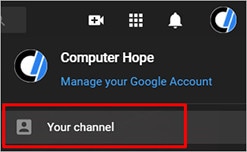
First, log in to your YouTube account, click the channel icon, and select "your channel" to proceed.
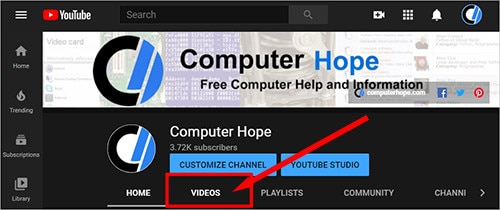
Now, click "videos" located in the middle of the tab, and select the video you want to add chapters to.
Watch the video to take note of the different times that a new section begins. This is important as adding chapters requires timestamps.
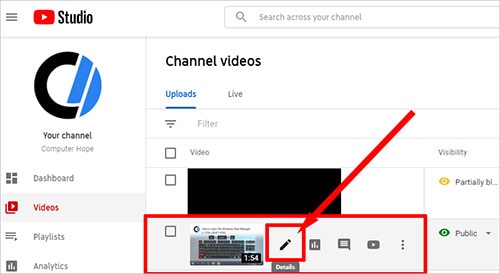
Now hover over the video you would like to edit and click the "details" icon to proceed.
Under the "details" option, enter the timestamp.
You need to answer the timestamps in the same format as the one shown below, or it won't work. In addition, you need to ensure that the first timestamp begins with 0.00. Below is an example of what your timestamp should look like.
0.0 – Add Pictures
0.20 – Add Music to Video
0.30 – Include Dimensions and Resolutions
1:20 – Carry Out Keyword Research
2:29 – Optimize Your Content
If your video is longer than 10 minutes, the timestamp won't be 0.00. So instead, you would have to use the 00.00 formats.
How to Get the Most out of YouTube Chapters
No single way of optimizing chapters on YouTube videos exists. Some people would prefer to avoid adding YouTube chapters to their videos while there are times when it gives you the best results. We shared some tips below on getting the most out of YouTube chapters.
Determine Which Videos to Add Chapters
While some videos will benefit from YouTube chapters, others won't benefit. Videos that show a guide, educational videos, and long-form videos like a video version of a podcast are ideal for adding chapters. As long as the video has many subtopics, you can use chapters to divide them. However, when the video is entertaining and very engaging, you don't have to add chapters. A video that already keeps your viewers engaged doesn't need chapters as it only gives them a reason to skip ahead, and it could serve as a distraction.
Experiment with YouTube Chapters
If you're trying to decide if YouTube chapters would be ideal for a video, you can experiment with the idea. You can keep an eye on many metrics to determine the impact chapters have on a video. An example is if you add chapters to an existing video, check the average video viewing duration of the video and the percentage of the video viewed.
You can find this information on your YouTube dashboard; tracking them before and after adding chapters can help you determine if it is hurting your engagement or improving it. You can also watch how adding chapters increases the number of views and watch time. Is there more traffic from external sources? Monitor any growth you see, and it will help you learn if you need to add chapters to your video.
Add Keywords to Your Chapter Labels
A good optimization strategy is adding keywords to the labels when using chapters. It allows your video to rank higher for those terms. If you made an instructional video, don't just use the video's title as your chapter label; find out how people search for them and use these labels.
YouTube chapters are quite easy to add to your video and, most times, have a significant effect on the performance. Using these tips will help optimize their performance and improve their impact on your YouTube video.
Bonus Tip: How to Add Video Chapters on a Computer
Previously, Filmora did not support adding video chapters directly. Now, the latest version of Wondershare Filmora includes a built-in Video Chapters feature that lets you automatically create a chapter-based progress bar for your exported video. Instead of manually adding text, markers, and title cards one by one, you can define chapters with timestamps and titles, then customize the chapter text, progress bar, and playhead in just a few clicks. This makes Filmora a much faster and more professional option for creating chaptered videos on both Windows and Mac.
Step 1: Download and Install Wondershare Filmora
First, download Filmora from the official website and install the version that matches your operating system. Once the installation is complete, launch Filmora and create a new project to get started.
 Secure Download

Step 2: Create a New Project and Import Your Video
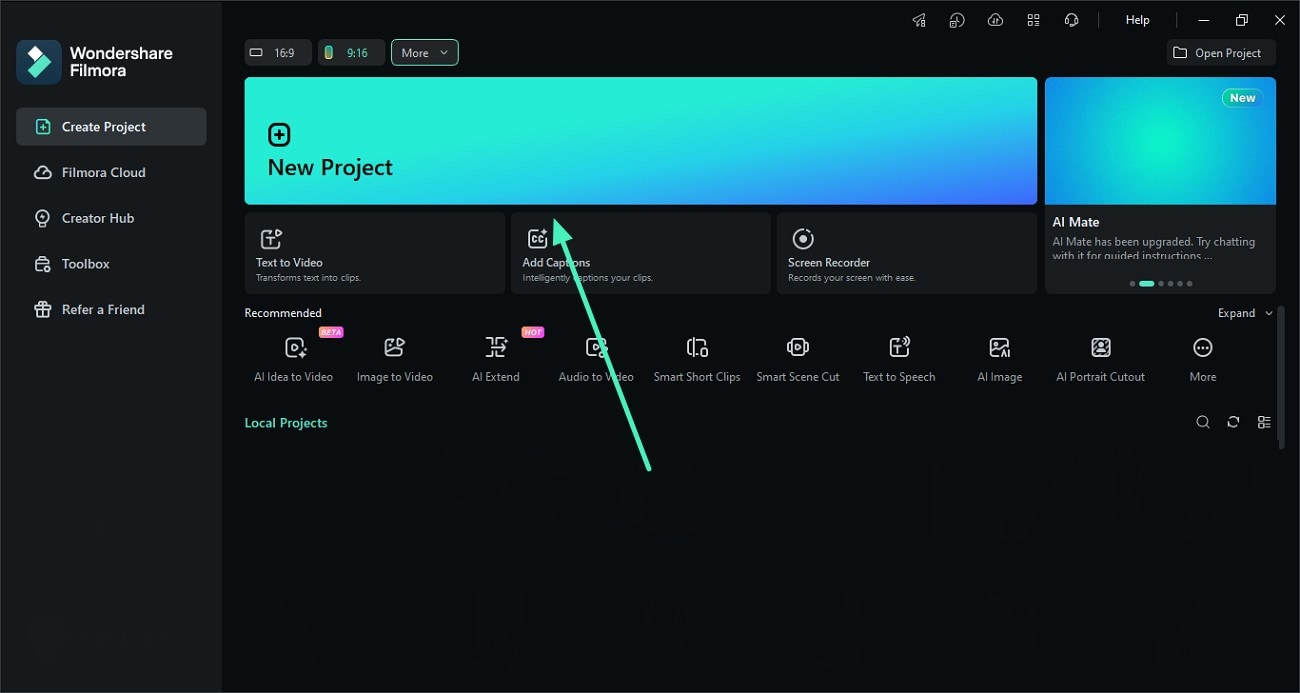
Open Filmora and click Create Project to start a new editing session. Then import the video you want to work with into the media library and add it to the timeline. You can finish your video editing first before adding chapters for export.
Step 3: Open Export and Enable Video Chapters
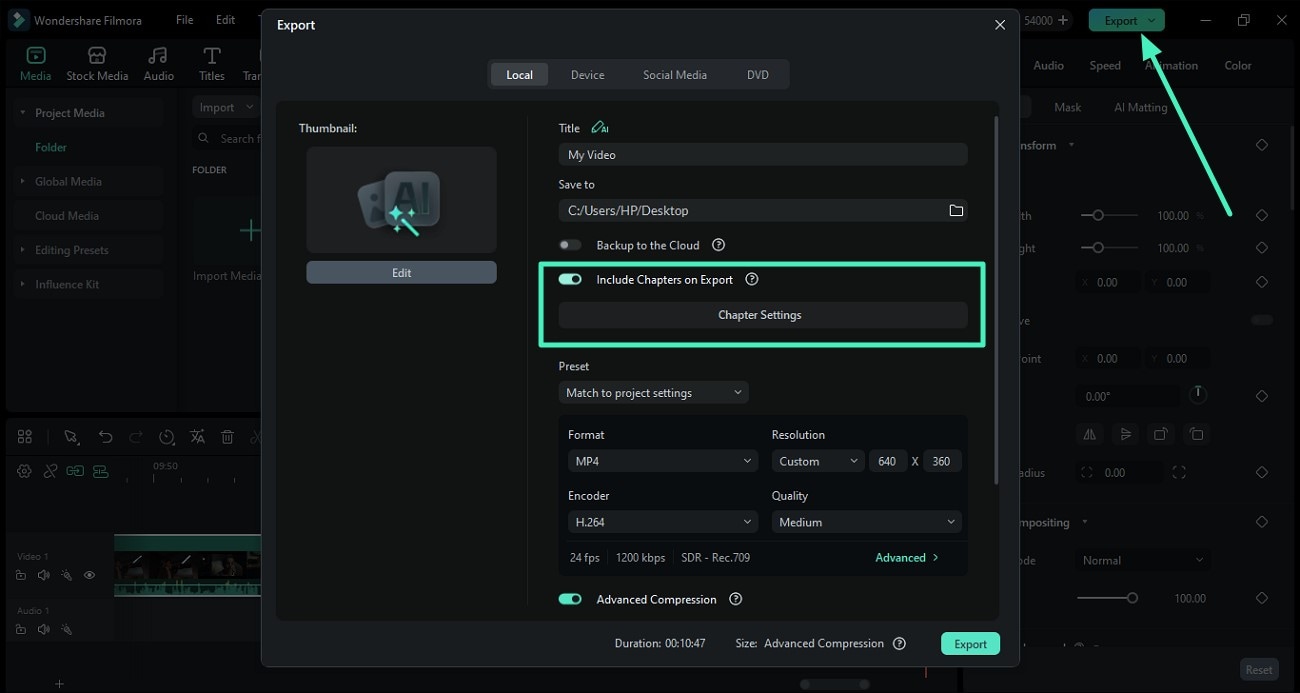
When your video is ready, click the Export button in the top-right corner. In the export window, turn on Include Chapters on Export, then click Chapter Settings to open the Video Chapters panel.
Step 4: Add Chapters to the Video
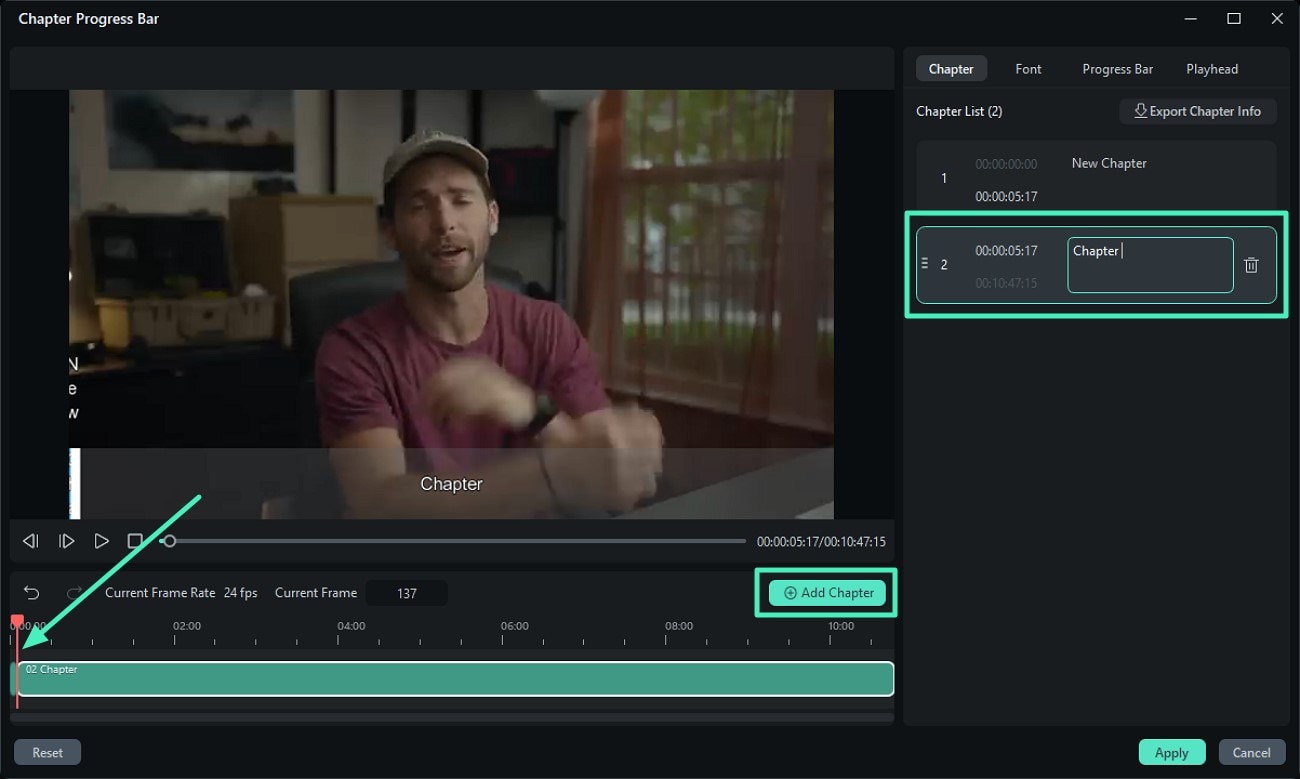
Move the playhead to the point where you want a new chapter to begin, then click Add Chapter. Enter a chapter title in the text field on the right. Repeat this process to add multiple chapters throughout the video. Filmora automatically builds the chapter structure based on the timestamps you set.
Step 5: Customize Chapter Fonts
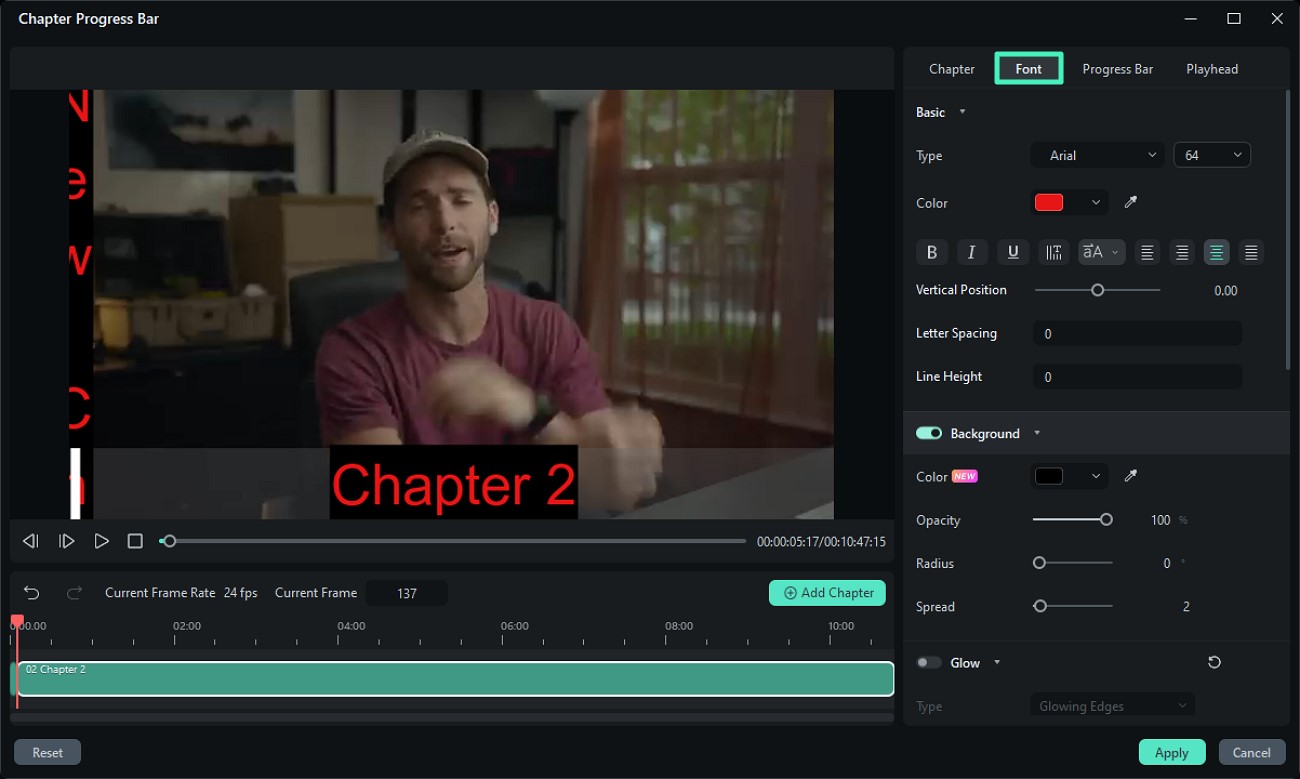
Go to the Font section to customize how chapter titles appear. You can adjust the font family, size, color, opacity, and other text attributes to match the style of your video.
Step 6: Edit the Progress Bar Style
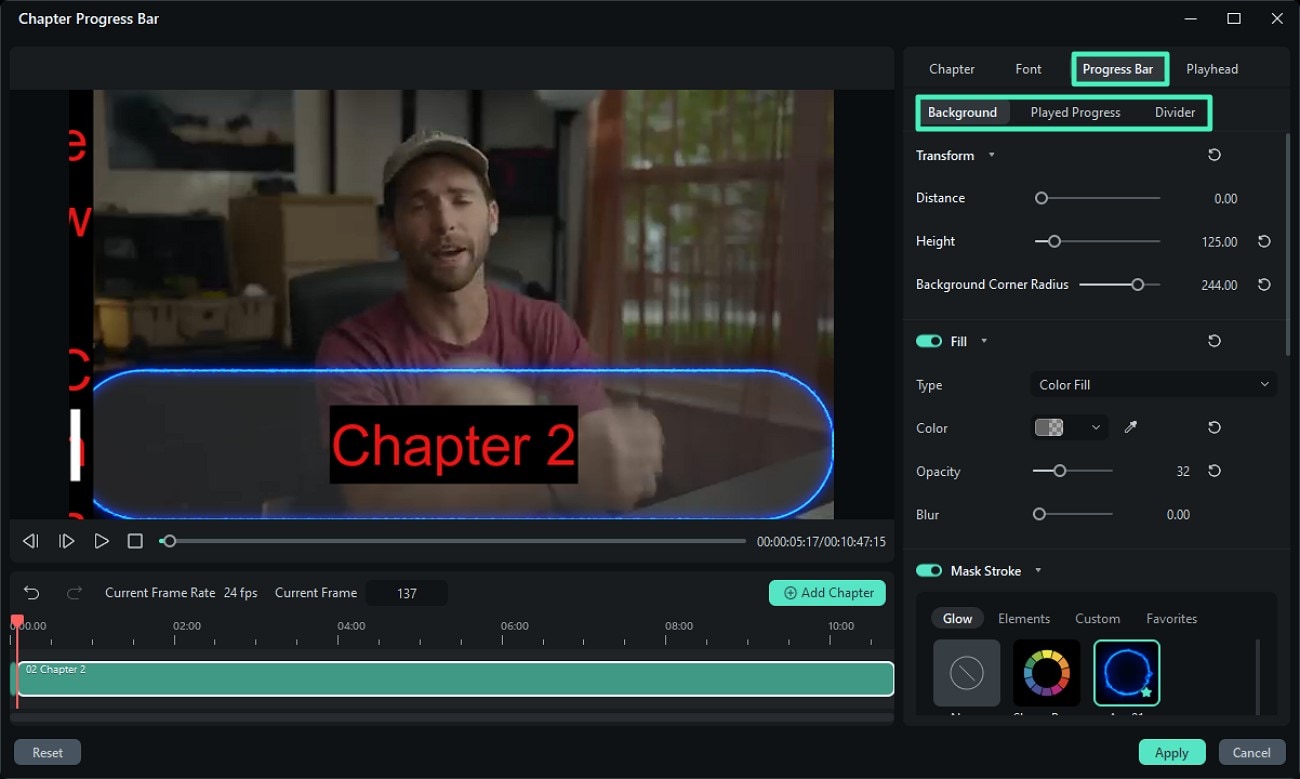
Enable the Progress Bar section and adjust the style of the chapter bar. You can customize elements such as the background, played progress, divider, stroke, fill, and other visual details so the chapter bar fits your video design.
Step 7: Modify the Playhead and Export the Video
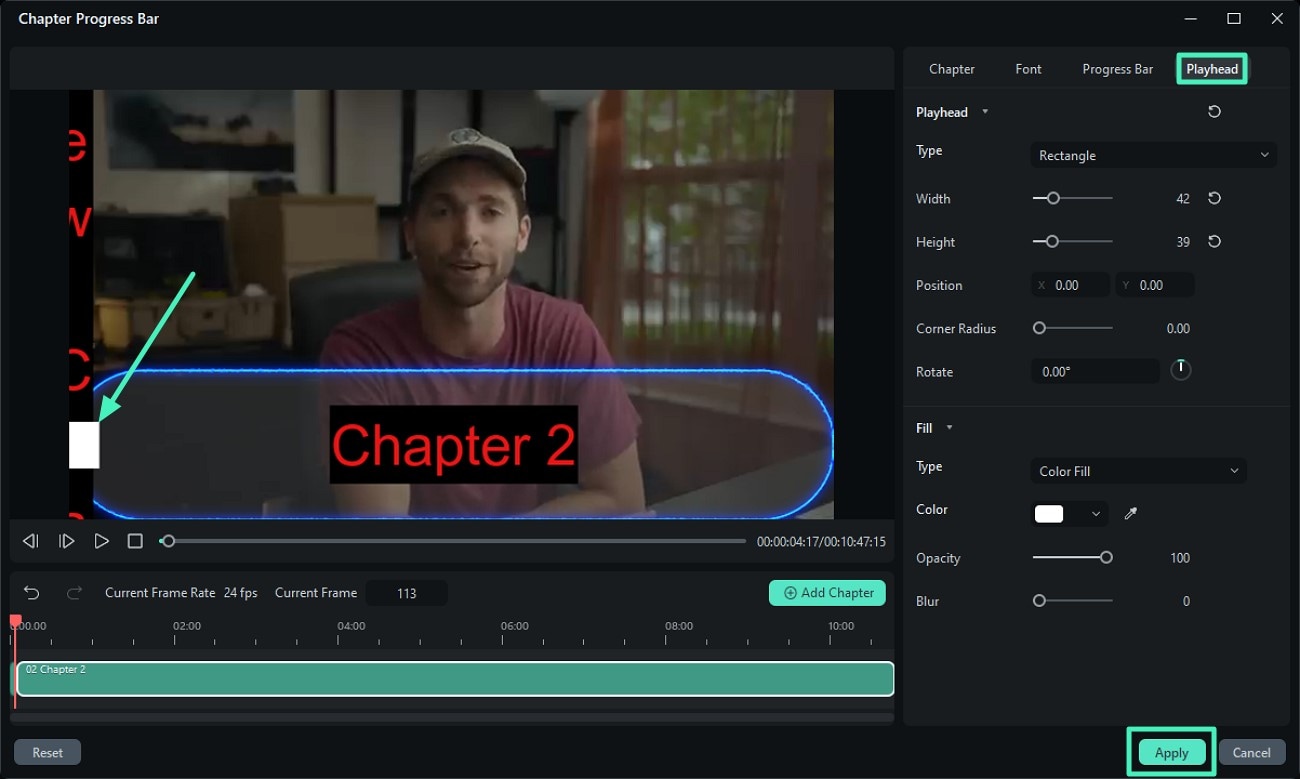
Next, open the Playhead section to customize the playhead's position, color, opacity, and other settings. After that, click Apply to save your chapter settings.
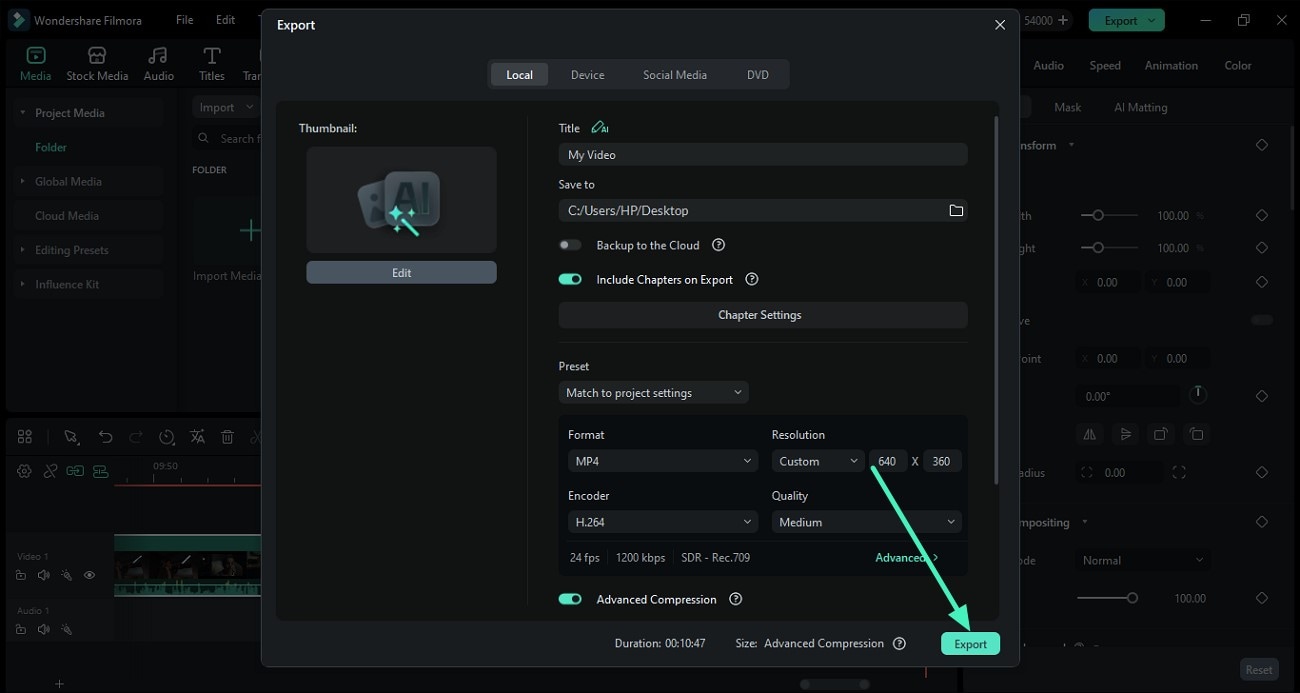
Finally, return to the export window and click Export to save your video with chapters. Filmora will automatically generate the chapter-based progress bar in the exported video, giving your content a clearer structure and a more professional viewing experience.
Final Thoughts
One of the best ways to boost your visibility in search engine results and increase views for your videos is to create entertaining content. However, using timestamps is also a great way to improve your visibility. It will enhance the viewer's experience and also increase your video ranking. You can experiment with YouTube video chapters today to determine if it is the right fit for your video.