
Nowadays, we face abundant multimedia materials, as no one can deny the Internet's presence in everyday life. Whether recording an event using our smartphones or watching old family videos, the quality of these videos cannot be overemphasized.
Here, Remini Video Enhancer changes the method of enhancing videos to make them look more appealing. However, as the app and the website have many strengths, many users have expressed concerns about their private details being exposed when using the app and the website.
In this article, you will discover detailed information on Remini AI Video Enhancer, including its options, ease of use, and much more.
In this article
An Overview of Remini Video Enhancer

Remini Video Enhancer is a tool designed for video enhancement, with numerous features that make it top-notch. As one of the free AI video enhancers, it incorporates the latest AI technology that works primarily in real-time to automatically increase the video quality of your clips and make the images appear more precise, crisp, and colorfully illuminated. Ensure you do not have to deal with grainy, pixelated videos anymore. Now, using Remini allows you to improve the image of old videos that were initially of low quality – as good as new.
Key Features:
- AI Enhancement: The enhanced artificial intelligence helps increase the resolution of the images and videos, and the picture quality gives you good visuals.
- Image Restore: This feature deletes marks of damage, blurrings, stains, and fading from too old photos and adds an artistic feeling to plain and worn-out pictures.
- Colorizer: The colorize mode changes the original B/W photograph to a color photograph with today's modern shades and tendencies.
- Auto-enhance: It can, for example, adjust the contrast, brightness, and saturation and improve other image and video attributes.
Compatibility and System Requirements
Remini Video Enhancer is intuitive, easy to use, and available now. It is supported across several platforms, meaning you can boost your videos anywhere.
| Platforms | System Requirements |
| Web | Google Chrome, Mozilla Firefox, and Safari. |
| Mobile | Android 7.0 and up & iOS 14 or later |
| PC | It doesn't offer the software to download and install, but you can use it on Windows and Mac by the web version. |
Pricing
If you are curious about the Remini video enhancer's price plan, here are the details. It depends on the device you are using.
Android: from $0.4.$189.99 per item
iOS: from $2.99 to $9.99 per week
Web: from $6.99 to $9.99 per week
Free version: enhance photos and leave watermarks
Pros & Cons
To obtain a rational view, it will be necessary to discuss the positive aspects of using Remini Video Enhancer and its shortcomings.
User Ratings and Reviews
We can see that Remini video enhancer got a 4.0 overall rating on the Google Play Store and 4.6/5 on the Apple App Store, many people thought it was a good photo enhancer and always used it. But they also point out that AI enhancement apps can't do everything. It won't turn your vintage blurry photos into masterpieces. We can also see some complaints that it is too expensive and doesn't work on videos over 6 seconds.
The overall rating and reviews are not exactly favorable when it comes to its video improvement features. That is why they have also got another option, which you will come across in the following sections.
How to Use Remini Video Enhancer?
Now that you understand what Remini Video Enhancer offers, let's explore how to make the most of this remarkable tool.
How to Use Remini Online Video Enhancer?
To get into Remini, open your internet browser and head to the Remini website.
- Upload Your Video: Click the "Upload" button and select the video you want to enhance.

- Select Enhancement Options: Remini offers various enhancement options. Choose the ones that best suit your video.

- Start Enhancement: Click "Enhance" and let Remini work its magic. The AI algorithms will process your video, and you'll see the improvements in real-time.

- Download Enhanced Video: Once the enhancement process is complete, you can download the enhanced video to your device.
Using Remini on the web is a straightforward process, making it accessible to users of all levels of expertise.
How to Use Remini Video Enhancer on Mobile?
If you want to enhance video quality on mobile, Remini video enhancer can also be a good video quality enhancer app. Here are the steps to use it on your phone.
- Install the Remini App: Download and install the Remini Video Enhancer app from the App Store (iOS) or Google Play Store (Android).

- Open the App: Launch the app on your smartphone.
- Upload Your Video: Tap the "Upload" button and select the photo you wish to enhance from your gallery. If you want to enhance video, you'll need to go for the premium plan.
- Enhance and Save: Press the "Enhance" button and wait for the app to process your video. Once done, save the enhanced video to your device.

- Download the video: After enhancing the video, preview it and then download it to your mobile phone.

The mobile app version also provides a similar interface that is quite helpful if one wants to make changes on the go.
A Proven Alternative To Remini Video Enhancer
Although Remini video enhancer delivers quick results and offers preview options during enhancement, there are limitations that cannot be ignored, such as restrictions on file size and video length. Many users also report a relatively low success rate when handling complex or heavily degraded videos. Considering these factors, users may look for a more reliable alternative to enhance video quality.
Wondershare Filmora stands out as one of the most effective video enhancement solutions, now powered by integrated Topaz generative AI video enhancement models. By simply enabling the AI Video Enhancer, Filmora intelligently improves clarity, restores detail, and enhances overall visual quality in just one click. In addition, Filmora supports a wide range of input and output formats, allowing users to easily convert videos between formats at no extra cost.
- AI Video Enhancement: It uses advanced AI to improve video quality with just one click, making soft, blurry, or low-quality footage look clearer and more refined.
- Auto Enhance: It helps optimize visual quality automatically for a cleaner look without overprocessing the footage.
- Advanced Color Adjustments: Filmora also lets you fine-tune color settings to improve balance, brightness, and overall visual appeal.
- Comprehensive Editing Tools: It offers 30+ AI-powered video editing features to simplify complicated and time-consuming tasks. In addition, Filmora includes many creative tools such as video masking, keyframing, motion tracking, and more.
- Watermark-Free Previews: Filmora also allows users to preview their enhanced videos without watermarks, making it easier to review results before exporting.
- AI Image Stylizer: You can choose from 20+ preset image styles, whether you prefer a fairy-tale look or a more dramatic visual style.
- Video Denoise: It helps remove grain and unwanted noise from videos with adjustable levels from weak to strong for better visual quality.
- Smart BGM Generation: You can generate unique background music based on your video content with the free AI music generator.
How to Use Filmora's AI Video Enhancer?
Step 1: Download and Install Filmora
Download Filmora on your computer, whether Windows or Mac. Follow the instructions shown on the screen to complete the installation.


Step 2: Import Your Video into Filmora
Launch Filmora, go to the home interface, click "New Project", and then select "Import" to upload your video to the media pane. Drag the clip onto the timeline to begin editing.
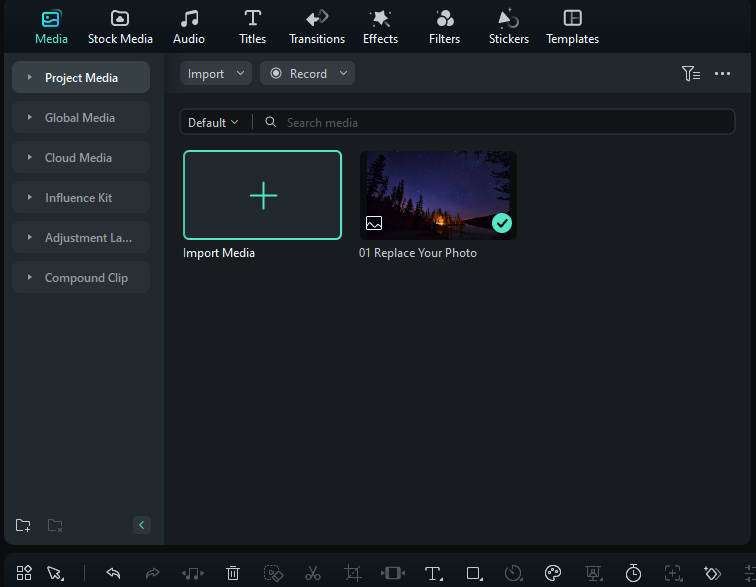
Step 3: Go to the AI Tools Section
Right-click the video in the timeline and open the "AI tools" section to find the available enhancement options.
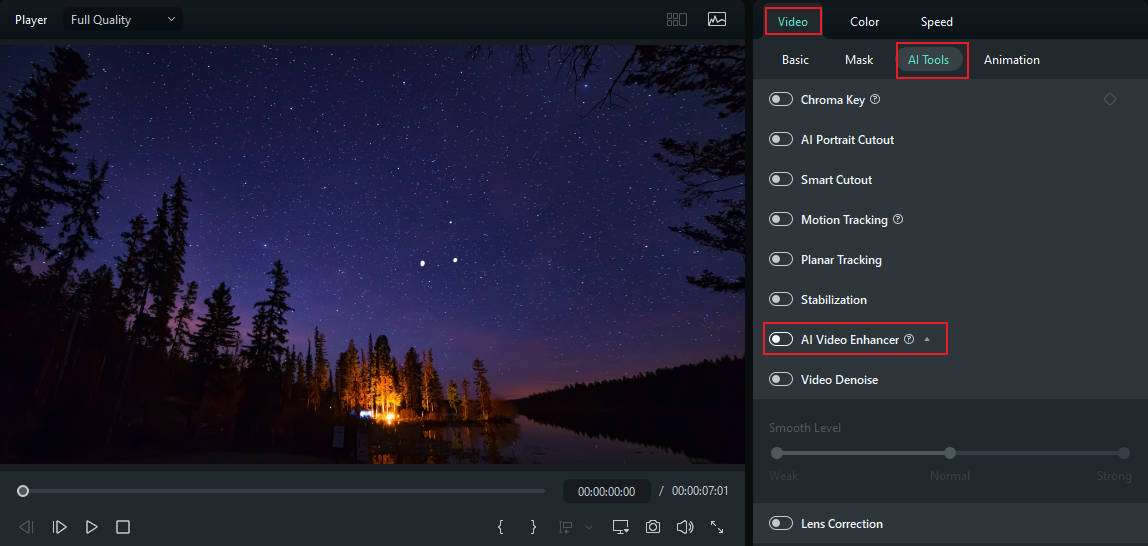
Step 4: Highlight the AI Video Enhancement Option
Select AI Video Enhancement from the list of AI tools. If available for your footage, you can also choose Generative Enhance for more natural detail recovery on shorter clips. Then click the generate button to start improving your video automatically.
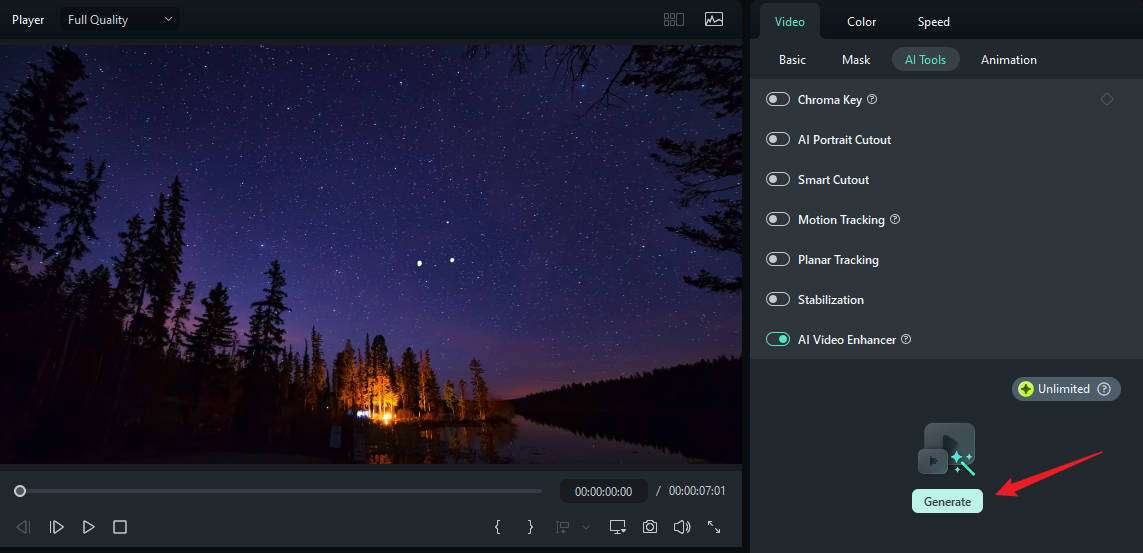
Step 5: Preview the Results and Make Adjustments
Once processing is complete, use the preview window to review the enhanced result. If needed, you can continue refining the video with Filmora’s other editing and adjustment tools.
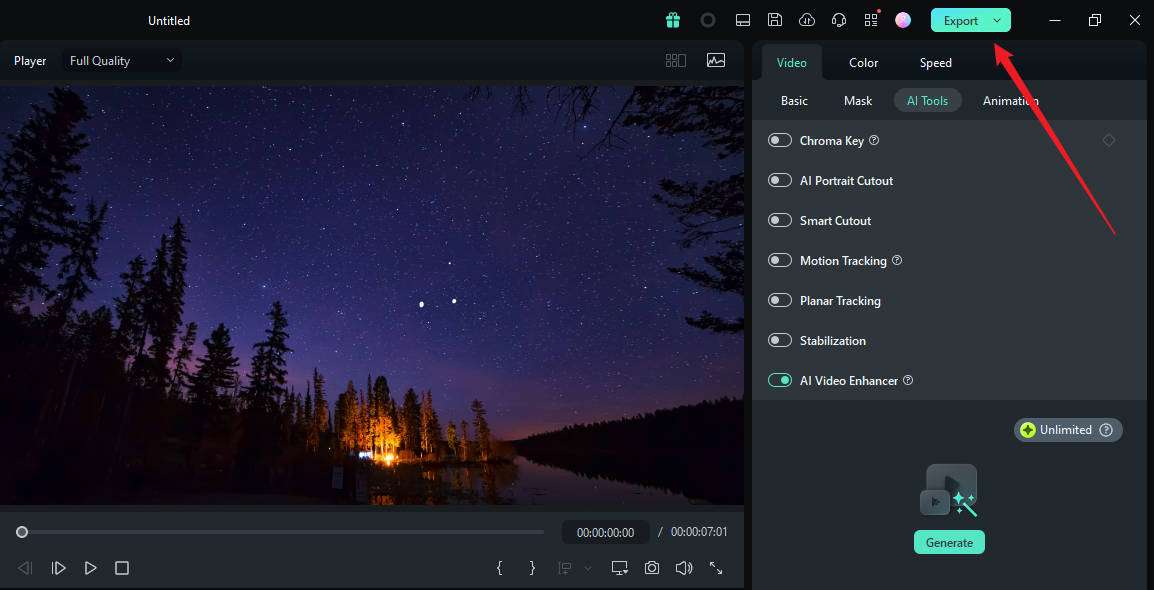
Step 6: Export the Enhanced Video
After you are satisfied with the result, click the "Export" button. Then choose your preferred video format, resolution, and save location for the enhanced file.
In addition to AI Video Enhancer, Filmora also offers other ways to improve video quality and upscale resolution. Here is a video for your reference.
- 100+ advanced video editing features.
- Vast video/audio effects and creative assets.
- Powerful AI for effortless content creation.
- Intuitive, professional yet beginner-friendly.
- Works on Mac, Windows, iOS, and Android.

Bottom Line
Remini Video Enhancer is a good tool to boost image quality, but it doesn't work great in enhancing video quality. In addition to that, it has strict limits on the video length and file size, which may cause inconvenience to users.
If one doesn't want to encounter video size issues and would want to go deeper in video editing, then Wondershare Filmora and its AI Enhancement feature are quite ideal. It is one of the best video editing tools, with the use of immense artificial intelligence features that enhance the videos, easy to operate, and the availability of many features that make it convenient for any creator no matter his or her level of expertise.
FAQs
-
Does Remini work on videos?
Yes. Remini is an AI boost that strengthens the videos and adds more attractiveness to the clips. A few of its key video-enhancing and editing options are there in the app and website versions. But it requires a subscription to enhance videos. -
Is Remini Safe?
Yes, Remini is a safe video and photo enhancer. All the personal data of individuals are processed and held by the company on its databases and facilities. Some of the information that is captured includes email addresses, IP locations, and social media account details. -
What is the allowed length of a video shared on Remini?
You cannot enhance a video longer than 1 minute in the personal plan, and the cumulative video length limit per week is 4 minutes /240 MB. In the business plan, the video length should be no more than 2 minutes and the cumulative video limit per week is 8 minutes /480 MB.